grid When you define a column in a WPF grid you can set the width to one of three possible values:
A fixed width,
Auto – column will become as wide as necessary to fit its children, or
(star) take up any available remaining space
The * is prefixed by a number (default is 1 if no number is specified). The available space is divided among the starred columns in proportion to the prefix number.
<Grid.ColumnDefinitions>
  <ColumnDefinition Width="0.07*"/>
  <ColumnDefinition Width="0.93*"/>
</Grid.ColumnDefinitions>
The first column will get 7% of the total space available and the second column would get 93%.
支持属性
<Grid.ColumnDefinitions>
    <ColumnDefinition Width="*"/>
    <ColumnDefinition Width="*"/>
</Grid.ColumnDefinitions>

<Grid.RowDefinitions>
    <RowDefinition Height="*"/>
    <RowDefinition Height="*"/>
</Grid.RowDefinitions>
代码修改高度 Application.Current.MainWindow.Height = 90; gdMain.RowDefinitions[2].Height = new GridLength(25);
跨列 <Grid> <Grid.ColumnDefinitions> <ColumnDefinition Width="1*" /> <ColumnDefinition Width="1*" /> </Grid.ColumnDefinitions> <Grid.RowDefinitions> <RowDefinition Height="*" /> <RowDefinition Height="*" /> </Grid.RowDefinitions> <Button>Button 1</Button> <Button Grid.Column="1">Button 2</Button> <Button Grid.Row="1" Grid.ColumnSpan="2">Button 3</Button> </Grid>
stackpanel defualt is vertical alinment
水平、垂直排列
<StackPanel Margin="8" Orientation="Horizontal">
   <Button MinWidth="93">OK</Button>
   <Button MinWidth="93" Margin="10,0,0,0">Cancel</Button>
</StackPanel>

<StackPanel Orientation="Horizontal" Grid.Row="0">
    <StackPanel.Resources>
        <Style TargetType="TextBlock">
            <Setter Property="FontSize" Value="16"/>
        </Style>
        <Style TargetType="TextBox">
            <Setter Property="FontSize" Value="16"/>
        </Style>
    </StackPanel.Resources>
    <Button x:Name="btn_test1" Margin="10 5 5 5" Width="75" Click="btn_test1_Click">test1</Button>
    <Button x:Name="btn_test2" Margin="10 5 5 5" Width="75" Click="btn_test2_Click">test2</Button>
    <Button x:Name="btn_test3" Margin="10 5 5 5" Width="75" Click="btn_test3_Click">test3</Button>
    <Button x:Name="btn_add_row" Margin="10 5 5 5" Width="75" Click="btn_add_row_Click">增加</Button>
    <TextBox Name="add_count" Width="55" Height="35" VerticalContentAlignment="Center">1</TextBox>
    <Label Width="55" Height="35" VerticalContentAlignment="Center">行</Label>
    <Button x:Name="btn_delete_rows" Margin="10 5 5 5" Width="75" Click="btn_delete_rows_Click">删除</Button>
</StackPanel>
wrapPanel 控件不足时自动换行、换列
放在 datagrid 里面时用 auto 就可以自动调节高度了
<Window x:Class="WpfTutorialSamples.Panels.WrapPanel"
        xmlns="http://schemas.microsoft.com/winfx/2006/xaml/presentation"
        xmlns:x="http://schemas.microsoft.com/winfx/2006/xaml"
        Title="WrapPanel" Height="300" Width="300">
	<WrapPanel>
		<Button>Test button 1</Button>
		<Button>Test button 2</Button>
		<Button>Test button 3</Button>
		<Button Height="40">Test button 4</Button>
		<Button>Test button 5</Button>
		<Button>Test button 6</Button>
	</WrapPanel>
</Window>
dockPanel top、left、right、bottom
lastChildFill 最后一个元素 填充剩余空间,默认是 true
<DockPanel LastChildFill="False">
    <StackPanel DockPanel.Dock="Top" Orientation="Horizontal" Height="35" >
        <Button x:Name="btn_config" Margin="4"   Click="btn_config_Click">配置</Button>
        <Button x:Name="btn_start" Margin="4" Click="btn_start_Click">启动</Button>
        <Button x:Name="btn_stop" Margin="4" Click="btn_stop_Click">停止</Button>
    </StackPanel>
</DockPanel>
指定行、列数,不允许单独设置容器大小。
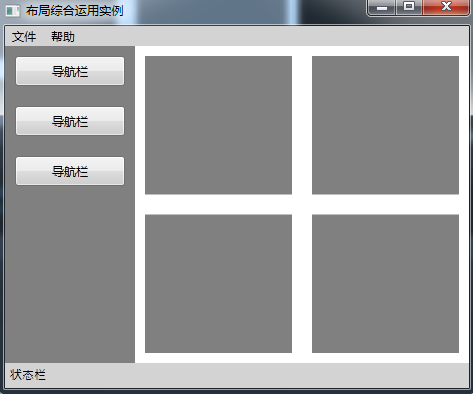
布局综合运用 <Window x:Class="WPFLayoutDemo.MainWindow" xmlns="http://schemas.microsoft.com/winfx/2006/xaml/presentation" xmlns:x="http://schemas.microsoft.com/winfx/2006/xaml" WindowStartupLocation="CenterScreen" Title="布局综合运用实例" Height="400" Width="480"> <DockPanel Width="Auto" Height="Auto" LastChildFill="True"> <!--顶部菜单区域--> <Menu Width="Auto" Height="20" Background="LightGray" DockPanel.Dock="Top"> <!--File菜单项--> <MenuItem Header="文件"> <MenuItem Header="保存"/> <Separator/> <MenuItem Header="退出"/> </MenuItem> <!--About 菜单项--> <MenuItem Header="帮助"> <MenuItem Header="关于本产品"/> </MenuItem> </Menu> <!--状态栏--> <StackPanel Width="Auto" Height="25" Background="LightGray" Orientation="Horizontal" DockPanel.Dock="Bottom"> <Label Width="Auto" Height="Auto" Content="状态栏" FontFamily="Arial" FontSize="12"/> </StackPanel> <!--Left--> <StackPanel Width="130" Height="Auto" Background="Gray" DockPanel.Dock="Left"> <Button Margin="10" Width="Auto" Height="30" Content="导航栏"/> <Button Margin="10" Width="Auto" Height="30" Content="导航栏"/> <Button Margin="10" Width="Auto" Height="30" Content="导航栏"/> </StackPanel> <!--Right--> <Grid Width="Auto" Height="Auto" Background="White"> <Grid.ColumnDefinitions> <ColumnDefinition Width="*"/> <ColumnDefinition Width="*"/> </Grid.ColumnDefinitions> <Grid.RowDefinitions> <RowDefinition Height="*"/> <RowDefinition Height="*"/> </Grid.RowDefinitions> <Rectangle Fill="Gray" Margin="10,10,10,10" Grid.Row="0" Grid.Column="0"/> <Rectangle Fill="Gray" Margin="10,10,10,10" Grid.Row="0" Grid.Column="1"/> <Rectangle Fill="Gray" Margin="10,10,10,10" Grid.Row="1" Grid.Column="0"/> <Rectangle Fill="Gray" Margin="10,10,10,10" Grid.Row="1" Grid.Column="1"/> </Grid> </DockPanel> </Window>