SOAP(Simple Object Access Protocol)是一种基于 XML 的 web 服务协议。SOAP 是平台独立的,不依赖于特定的语言,例如,我们可以使用 C#,C/C++,或者 Java 语言来实现 SOAP web 服务。

SOAP 的优点有:

  • WS Security:SOAP 使用 WS Security 作为其安全的标准,安全性较高。
  • 语言与平台独立:可以使用多种语言来实现 SOAP web 服务,且可以运行在多种平台上面。

SOAP 的缺点有:

  • 速度较慢:SOAP 使用 XML 作为数据传输的格式,web 服务每次读取数据时都需要对 XML 进行解析,速度较慢。另外,SOAP 规定了 web 服务需要遵循的许多规范,这导致在传输过程中消耗较多的网络带宽。
  • 依赖于 WSDL:除了使用 WSDL 外,SOAP 并不提供其他的机制来让其他应用程序发现服务。
vs2015调试时无法查看string、vector等类型的值

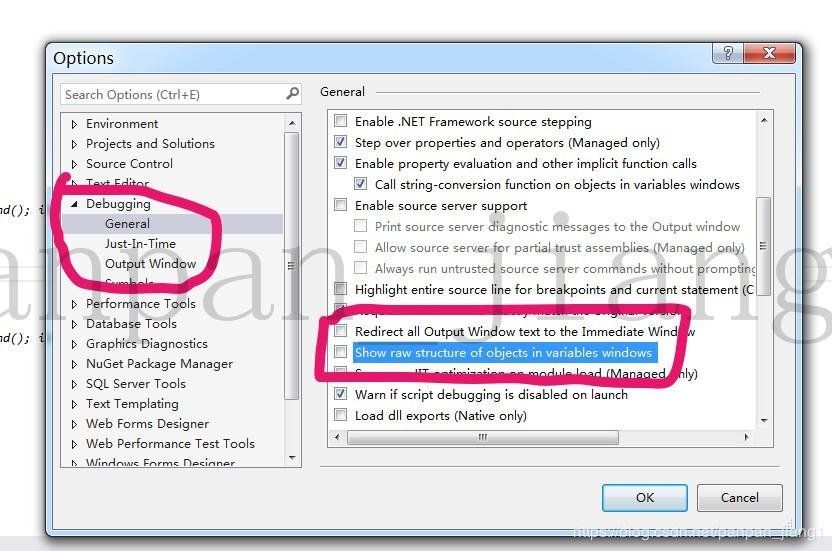
设置Show raw structure of objects in variables windows(中文版是“在变量窗口中显示对象的原始结构”)这个选项

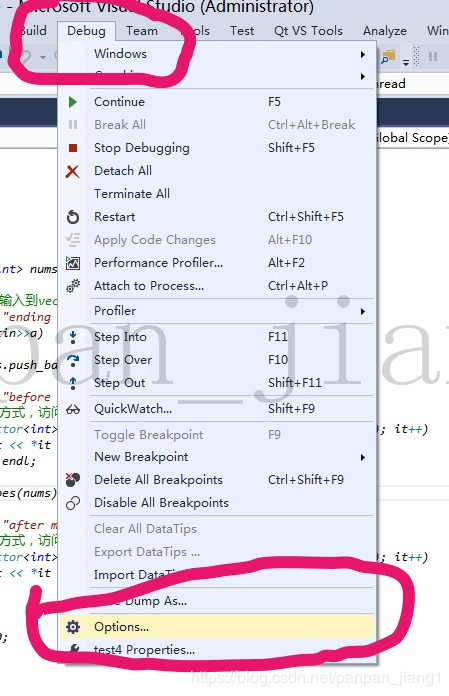
首先找到“Debug(调试)”,下拉菜单里选择“Options(选项)”

20200708_130854.png

然后找到Show raw structure of objects in variables windows,把前面的勾去掉(一定是去掉勾)

20200708_130906.png

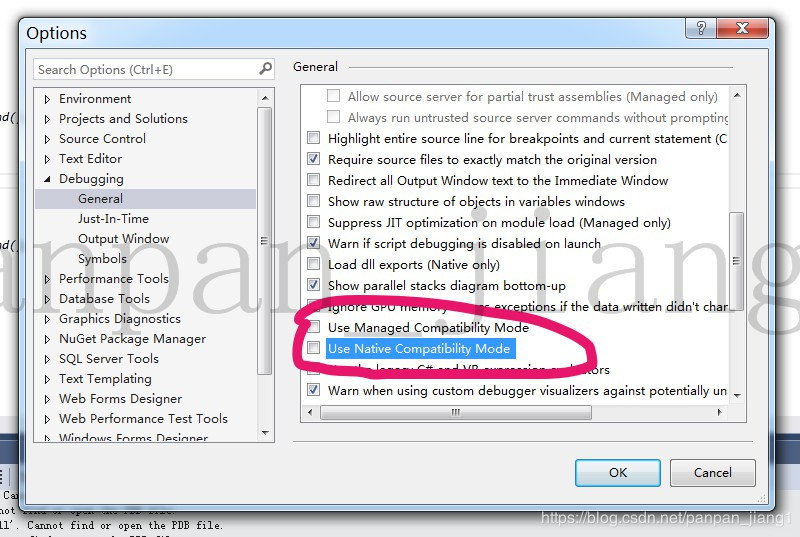
设置“Use Native Compatibility Mode”和“Use Managed Compatibility Mode”(中文版是“使用本机兼容性模式”和“使用托管兼容模式”)这个选项。把前面的勾去掉,否则可能无法使用natvis文件,如下图所示:

20200708_130918.png

Image is a base abstract class representing images in GDI+. Bitmap is a concrete implementation of this base class.

BitmapImage is a way to represent an image in a vector based GUI engine like WPF and Silverlight. Contrary to a Bitmap, it is not based on GDI+. It is based on the Windows Imaging Component.

msdn

<!-- Simple image rendering. However, rendering an image this way may not
result in the best use of application memory. See markup below which
creates the same end result but using less memory. -->
<Image Width="200"
Source="C:\Documents and Settings\All Users\Documents\My Pictures\Sample Pictures\Water Lilies.jpg"/>

<Image Width="200">
<Image.Source>
<!-- To save significant application memory, set the DecodePixelWidth or
DecodePixelHeight of the BitmapImage value of the image source to the desired
height and width of the rendered image. If you don't do this, the application will
cache the image as though it were rendered as its normal size rather then just
the size that is displayed. -->
<!-- Note: In order to preserve aspect ratio, only set either DecodePixelWidth
or DecodePixelHeight but not both. -->
<BitmapImage DecodePixelWidth="200"
UriSource="C:\Documents and Settings\All Users\Documents\My Pictures\Sample Pictures\Water Lilies.jpg" />
</Image.Source>
</Image>

使用图片资源

<Window x:Class="fwPlcCheckAssist.MainWindow"
xmlns="http://schemas.microsoft.com/winfx/2006/xaml/presentation"
...
Title="fwPlcCheckAssist-2021.03.16 1023" Height="800" Width="1000">
<Window.Resources>
<BitmapImage x:Key="img_black" UriSource="img/black-48.png" DecodePixelWidth="48" />
<BitmapImage x:Key="img_green" UriSource="img/green-48.png" DecodePixelWidth="48" />
<BitmapImage x:Key="img_red" UriSource="img/red-48.png" DecodePixelWidth="24" />
<BitmapImage x:Key="img_black24" UriSource="img/black-48.png" DecodePixelWidth="24" />
</Window.Resources>
<Grid>
...
</Grid>

img_next.Source = FindResource("img_red") as BitmapImage;

线程更新界面

Dispatcher.Invoke(new Action(
() => { measureDisplay.operate_type = "手动"; }
));

在一个 usercontrol 的线程里面,更新另一个 usercontrol 的界面

Application.Current.Dispatcher.Invoke(new Action(
() => { ((MRLGauger.MainWindow)Application.Current.MainWindow).sensorDisplay.draw(); }
)
);

<TreeView Name="treeView" Padding="0" Margin="5 5 0 5"  Loaded="treeView_Loaded" 
SelectedItemChanged="treeView_SelectedItemChanged">
<TreeView.Resources>
<Style TargetType="TreeViewItem">
<Setter Property="IsSelected" Value="{Binding Path=IsSelected, Mode=TwoWay}" />
</Style>
<!-- Style the inactive selection the same as active -->
<SolidColorBrush x:Key="{x:Static SystemColors.InactiveSelectionHighlightBrushKey}"
Color="{DynamicResource {x:Static SystemColors.HighlightColorKey}}" />
<SolidColorBrush x:Key="{x:Static SystemColors.InactiveSelectionHighlightTextBrushKey}"
Color="{DynamicResource {x:Static SystemColors.HighlightTextColorKey}}"/>
</TreeView.Resources>
<TreeView.ItemTemplate>
<HierarchicalDataTemplate DataType="{x:Type localModel:ModelTreeNodeItem}" ItemsSource="{Binding Path=Children, Mode=TwoWay, UpdateSourceTrigger=PropertyChanged}">
<StackPanel Orientation="Horizontal">
<TextBlock VerticalAlignment="Center" Text="{Binding Name , Mode=TwoWay, UpdateSourceTrigger=PropertyChanged}"></TextBlock>
<StackPanel.ToolTip>
<TextBlock VerticalAlignment="Center" Text="{Binding Tips, Mode=TwoWay, UpdateSourceTrigger=PropertyChanged}" TextWrapping="Wrap" MaxWidth="200" ></TextBlock>
</StackPanel.ToolTip>
</StackPanel>
</HierarchicalDataTemplate>
</TreeView.ItemTemplate>
</TreeView>

需要安装 NSIS,然后在安装向导工具 HM NIS Edit

使用 HM NIS Edit 来操作即可。

文件-新建脚本向导

TODO:
添加图片,双语支持

StrCmp

str1 str2 jump_if_equal [jump_if_not_equal]

StrCmp $0 "a string" 0 +3
DetailPrint '$$0 == "a string"'
Goto +2
DetailPrint '$$0 != "a string"'
阅读全文 »

//第一个元素是当前程序的全路径,从第二个元素起才是命令行参数。
string[] pargs = Environment.GetCommandLineArgs();

启动最大化

WindowStartupLocation="CenterScreen" WindowState="Maximized"

deployment 里面设置一下。

细节后面补充

.net framework

这个没想到相对于 .net core 非常麻烦

可以使用 NSIS

也可以用下面的
Installer Projects

.net core

win7 64位 系统

  1. 安装补丁包 Windows6.1-KB2533623-x64.msu
  2. 安装运行库 windowsdesktop-runtime-3.1.5-win-x64.exe

如果上面还不行,有可能还需要 KB2999226 补丁包

连接里面有颜色表

msdn

Colors 的定义一样

Color

using System.Windows.Media;

Color color = (Color)ColorConverter.ConvertFromString("#FFDFD991");

Brush

measurDisplay.tb_operate_status.Foreground = new BrushConverter().ConvertFromString("#CC0033") as SolidColorBrush;

运算符“=>”是一种与赋值运算“=”具有相同优先级的右结合运算符,在英语里读作:“goes to”。

([参数列表]) => 表达式

Func lambda = param =>
{
param += mid;
param += " fuck";
return param;
};